Alliance Digital Solutions

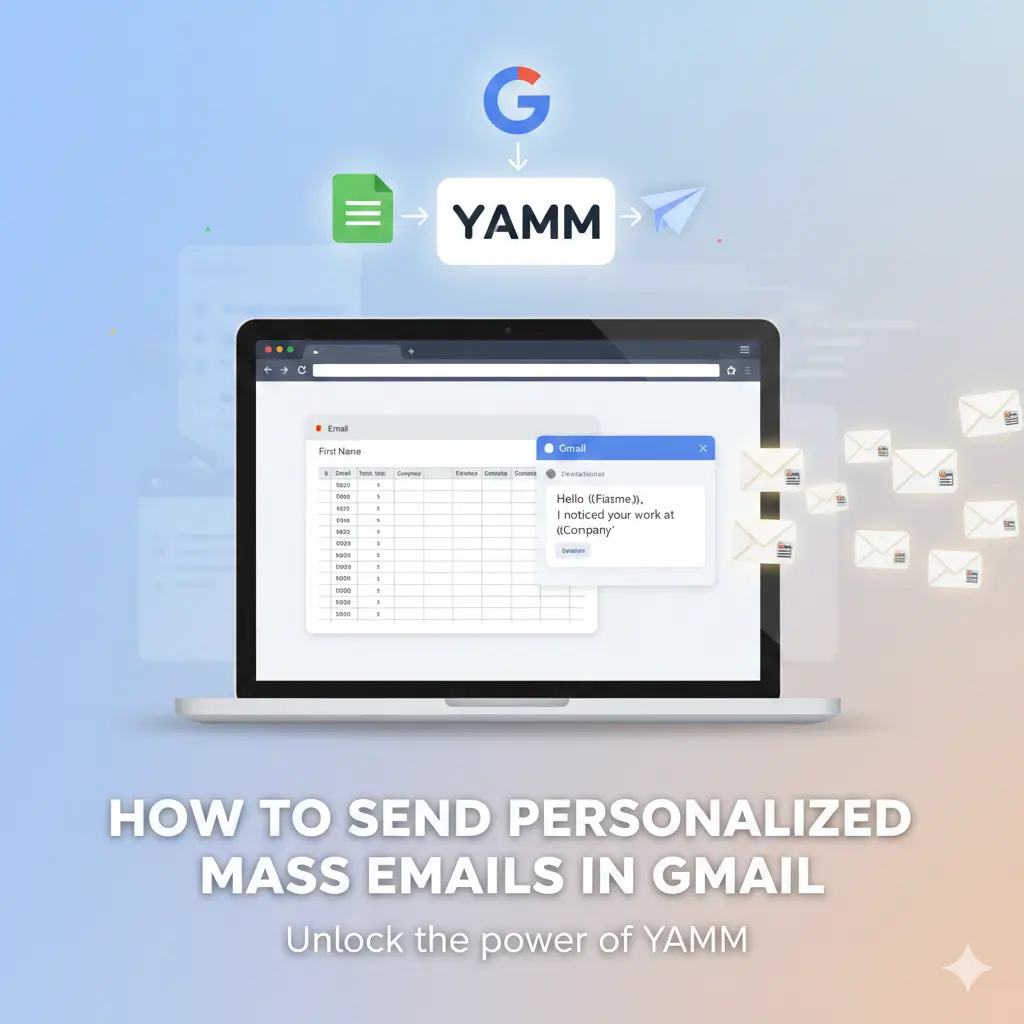
Email outreach sounds easy until you actually do it. Copy paste names, tweak subject lines, pray you did not email John as “Hi {{First Name}}”.
That is exactly the problem YAMM (Yet Another Mail Merge) solves.
This tutorial walks you through YAMM step by step. No fluff. No fake hacks. Just how the tool really works, where it shines, and where you need to be careful to stay compliant with Google’s rules.
Everything here is based on official documentation, Google Workspace policies, and real-world usage.
What is YAMM and Why people use it?
YAMM is a Gmail-based mail merge tool built for Google Workspace users. It lets you send personalized emails at scale directly from Gmail using data stored in Google Sheets.
You do not need to learn new software.
You do not need to connect to external SMTP servers.
You stay inside Google’s ecosystem.
That last part matters a lot for deliverability.
Common use cases
Cold outreach for small businesses
- Customer updates and announcements
- School or university communication
- Event invitations
- Follow-up emails at scale
If you already use Gmail and Google Sheets, YAMM feels familiar within minutes.
How YAMM works behind the scenes
YAMM connects three things:
- Your Gmail account
- A Google Sheet with recipient data
- A Gmail draft used as the email template
Each row in your spreadsheet becomes one personalized email. YAMM replaces placeholders like {{First Name}} with real values before sending.
Importantly, emails send through Gmail’s own infrastructure. That keeps you aligned with Google Workspace sending limits and spam policies.
Primary sources
- Google Workspace Gmail sending limits documentation
- YAMM official help center and on boarding guides
Step 1. Install YAMM the right way
- Go to the Google Workspace Marketplace.
- Search for Yet Another Mail Merge.
- Install the add-on and grant permissions.
YAMM requires access to Gmail and Google Sheets. That is not optional because the entire system depends on those services.
Tip from experience: install YAMM using the same Google account that will send the emails. Mixing accounts causes permission errors later.
Step 2. Prepare your Google Sheet
Your spreadsheet structure matters more than people think.
Required columns
- Email (mandatory)
- Any personalization fields like First Name, Company, Role
Example:
First Name | Company | |
jane@example.com | Jane | Acme Inc |
Avoid spaces at the start or end of column names. YAMM reads headers exactly as written.
This step directly impacts error rates and failed sends.
Step 3. Create a Gmail draft for your email
Open Gmail and create a new draft.
Use placeholders wrapped in double curly braces.
Example:
Hello {{First Name}},
I noticed your work at {{Company}} and wanted to reach out.
YAMM scans this draft and maps placeholders to spreadsheet columns.
Real talk: write like a human. Overly polished templates scream automation. Gmail filters notice that too.
Step 4. Launch YAMM from Google Sheets
Open your spreadsheet.
Click Extensions → Yet Another Mail Merge → Start Mail Merge.
You will see options for:
- Sender name
- Reply-to address
- Email tracking
- Schedule sending
Choose carefully. Tracking pixels may impact deliverability for certain audiences, especially in regions with strict privacy laws.
Source reference:
- YAMM tracking documentation
- GDPR and email consent guidelines from EU regulators
Step 5. Understand Gmail sending limits before you click send
This is where many users get burned.
Official Gmail limits (Google Workspace)
- Up to 2,000 emails per day for paid Workspace accounts
- Up to 500 emails per day for free Gmail accounts
YAMM enforces these limits automatically. It does not bypass them and that is a good thing.
Trying to game Gmail limits usually ends with temporary blocks or account reviews.
Source:
- Google Workspace Admin Help, Gmail sending limits
Step 6. Track results without obsessing over them
YAMM shows basic metrics like:
- Emails sent
- Opens
- Clicks (if enabled)
These numbers help you understand engagement trends, not individual behavior.
Open rates are directional signals, not truth serum. Apple Mail Privacy Protection and Gmail image caching distort them heavily.
Experienced marketers use tracking to compare campaigns, not judge people.
Common Mistakes to Avoid with YAMM
Sending cold emails without warming up
New Gmail accounts need gradual sending. Start small.
Overusing links and images
Heavy templates trigger spam filters faster than bad copy.
Ignoring unsubscribe options
Even for small lists, respecting opt-outs builds trust and reduces complaints.
Writing like a robot
If your email sounds like software wrote it, spam filters probably agree.
Is YAMM safe and compliant?
Yes, when used properly.
YAMM operates entirely within Google Workspace policies. It does not store email content outside Google infrastructure beyond campaign metadata.
However, compliance still depends on you.
- Follow CAN-SPAM rules for commercial emails
- Follow GDPR consent requirements for EU recipients
- Provide clear identification and opt-out options
YAMM gives tools. Responsibility stays with the sender.
Who Should Use YAMM and Who Should Not
Good fit for
- Small teams
- Educators
- Freelancers
- Founders doing light outreach
Not ideal for
- High-volume cold email at scale
- Aggressive affiliate marketing
- Automated drip campaigns with complex logic
For advanced automation, dedicated email platforms make more sense.
Final Thoughts
YAMM works because it keeps things simple and honest.
It does not promise magic deliverability. It does not try to outsmart Gmail. It just helps you send personal emails without losing your weekend.
Used with care, it is one of the safest ways to scale email outreach inside Google Workspace.
If you respect limits, write like a human, and follow the rules, YAMM quietly does its job. And that is exactly what good tools should do.